Features
What the program does, part by part.
Each part is a tab in the program. They all work on the same holes, so what you log is what the sections, the composites and the exports use.
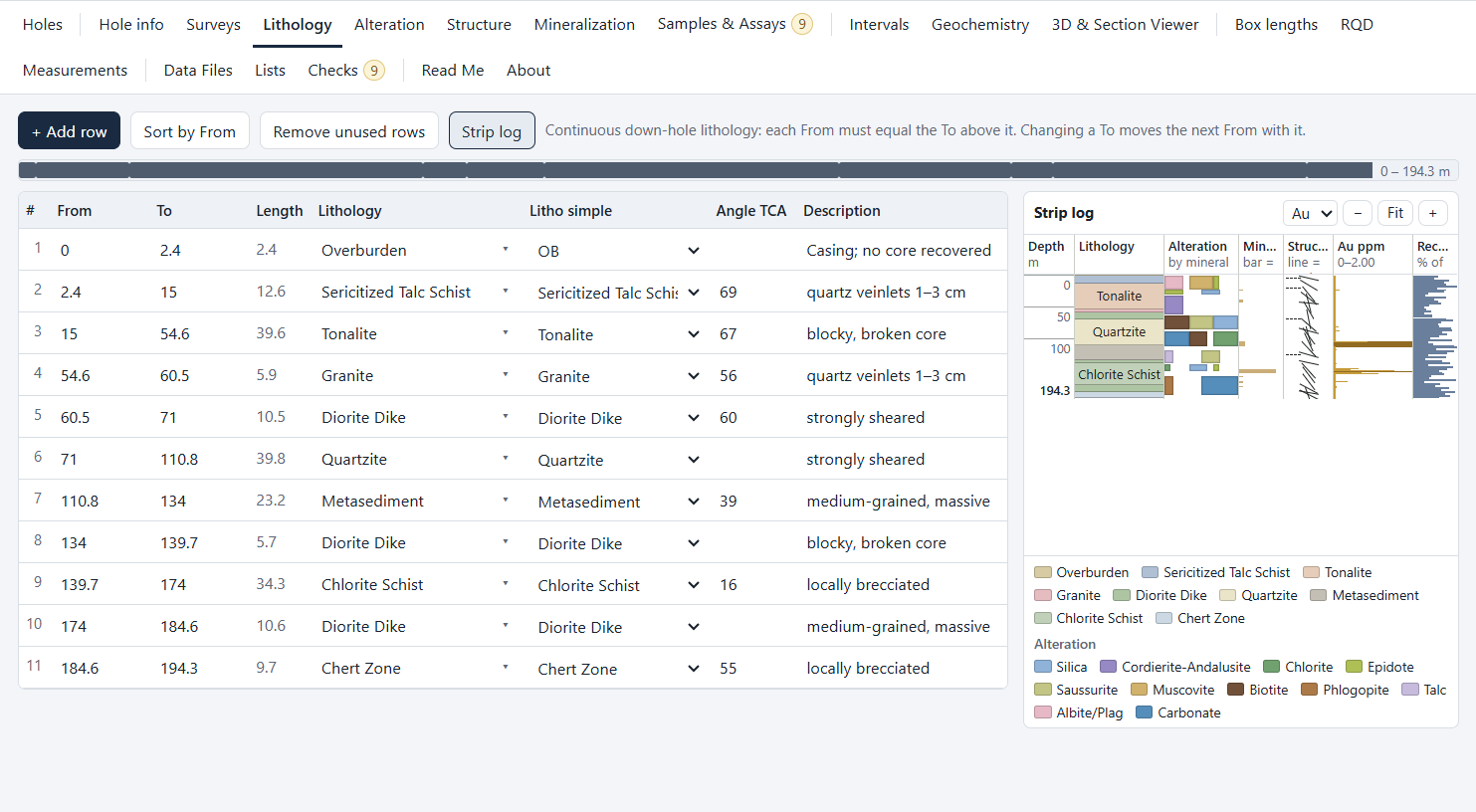
Logging
Log the core, and see the hole take shape.
- A tab for each table: hole information, surveys, lithology, alteration, structure, mineralization, samples, RQD and recovery, box lengths and measurements.
- A strip log beside the lithology table, drawn to scale as you type: rock, alteration by mineral, mineralization, structures and a grade track.
- Drop-down lists of your own rock names, minerals and structures, each rock with its colour, carried from hole to hole.
- Oriented core: type the angles and the true dip and dip direction are worked out.
- Checks as you go. Overlaps, gaps, a depth past the hole length, duplicate sample numbers: errors to fix before a log is finalized, and warnings to look over. A click goes to the row.
- Core photos matched to their boxes by file name, shown at the depth you click.
Samples, assays and QAQC
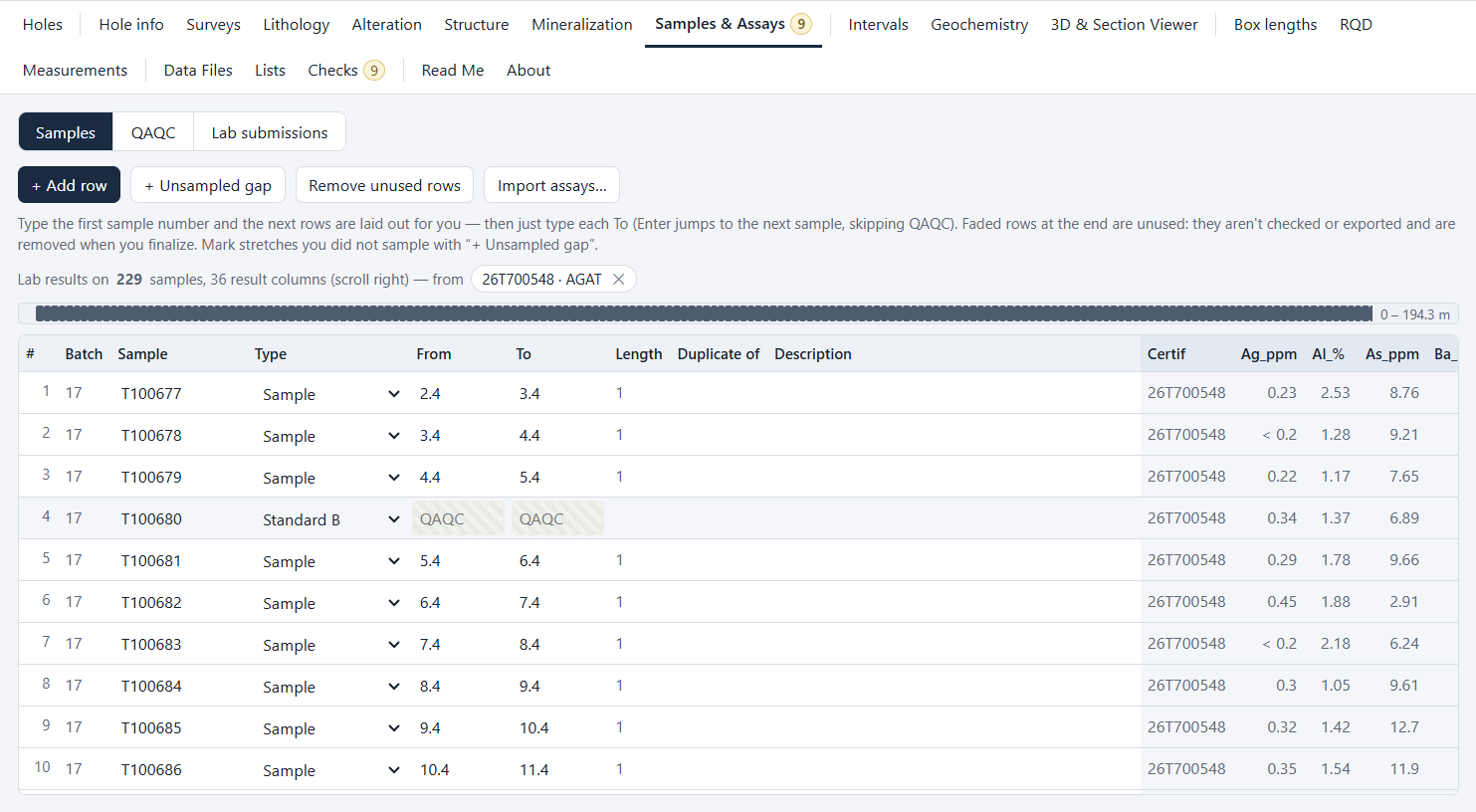
From the sample tag to the certificate.
- Type the first sample number and the rest are laid out, with your standards, blanks and duplicates inserted to the pattern you set.
- Lab certificates are read in from CSV or Excel files and the results land on the matching samples, with the certificate each came from.
- Results below detection and over-limit re-assays are handled for you in the calculations.
- A QAQC view: standards against their certified values, blanks against the detection limit, and duplicate pairs.
- A list of what has gone to the lab and what has not.
Intervals
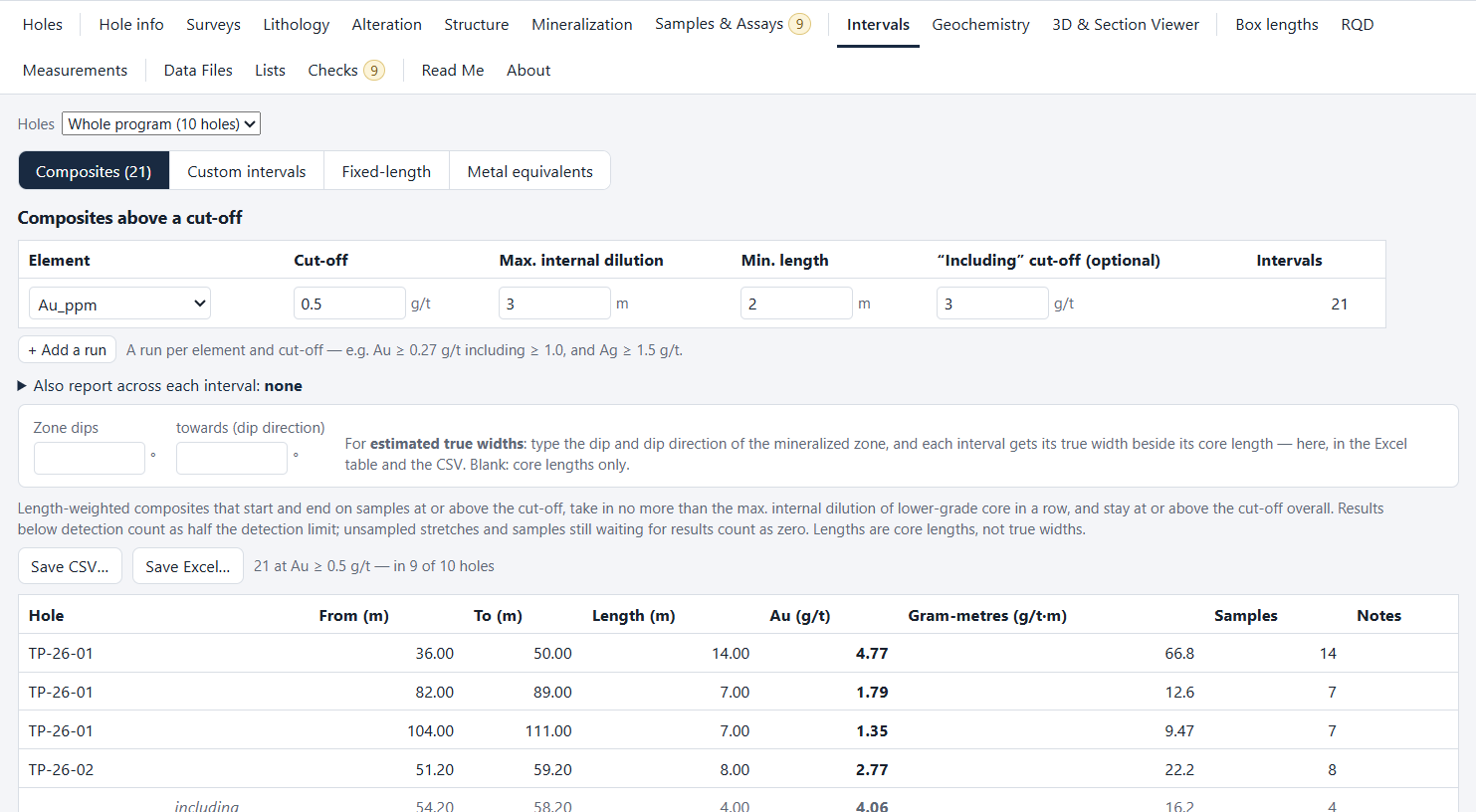
Composites you can put in a report.
- Composites above a cut-off, with the internal dilution and minimum length you allow, and “including” intervals at a higher cut-off.
- Custom intervals between any two depths, and fixed-length composites.
- Metal equivalents (NiEq, CuEq, AuEq and the like) from a price table you type in, with recoveries and sources. A set of prices can be locked under a date so a published table never changes.
- Estimated true widths from the dip of the zone and the direction of each hole.
- A formatted Excel table of the intervals, with the basis written under it.
3D & Section Viewer
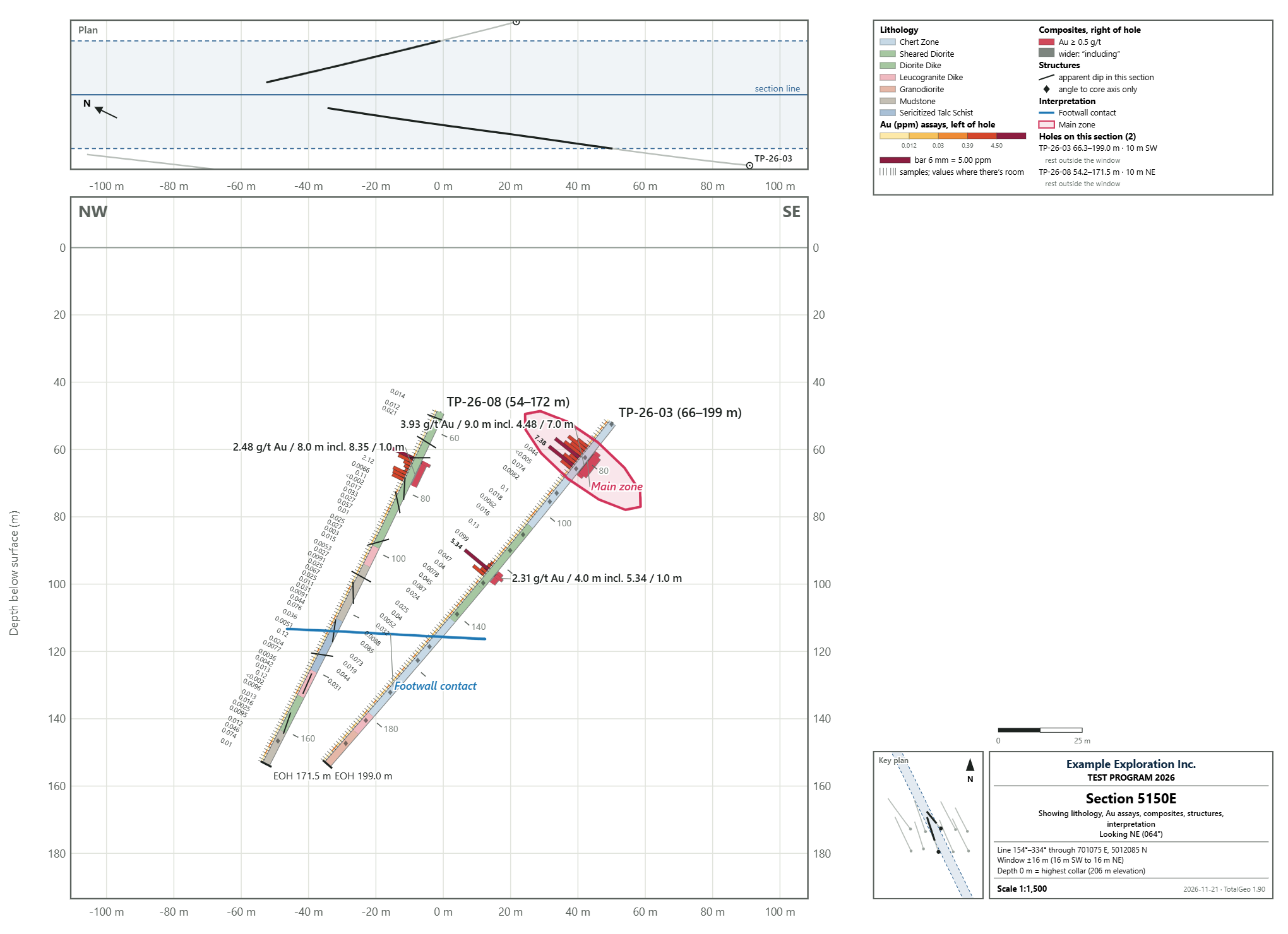
The holes where they really are.
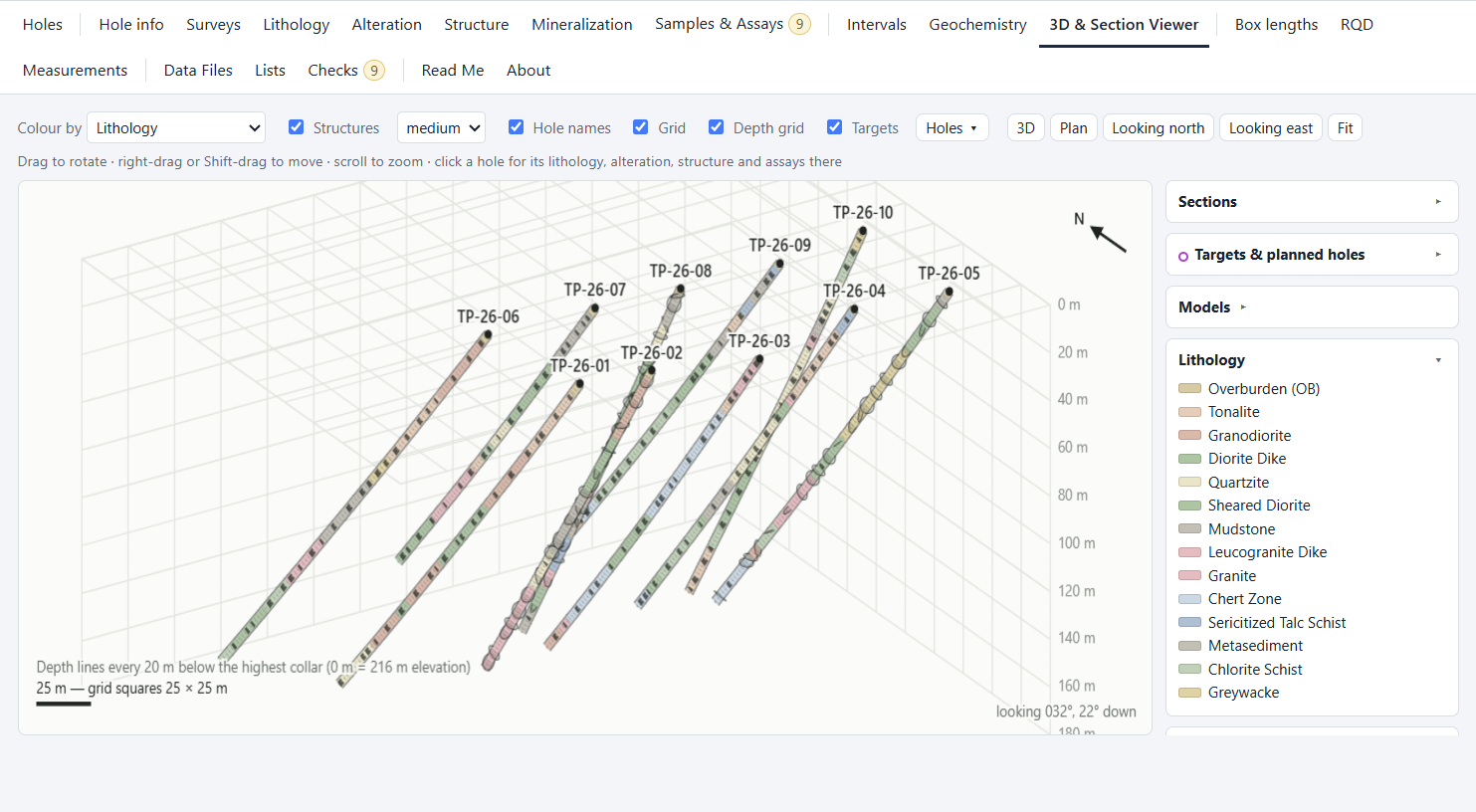
- Every hole in 3D from its collar and surveys, coloured by lithology, alteration, assays (up to four elements side by side) or composites, with oriented structures as discs.
- Sections to scale: one section or a series of slices across an area, on a sheet from Letter to a 42-inch roll, saved as a PDF or as pictures.
- On a section: lithology, assay bars with their values, composites with their grades, structures at their apparent dip, a plan strip, legend, title block and key plan.
- Draw your own contacts and zone outlines on a section. They are kept with it, shown in 3D, and saved as a DXF.
- Bring in DXF models such as topography or pit shells, and GeoTIFF or grid layers.
- Targets and planned holes: click a point in the ground and a hole to reach it is proposed from the direction and drift of the holes nearby.
Geochemistry
A first look at what goes with what.
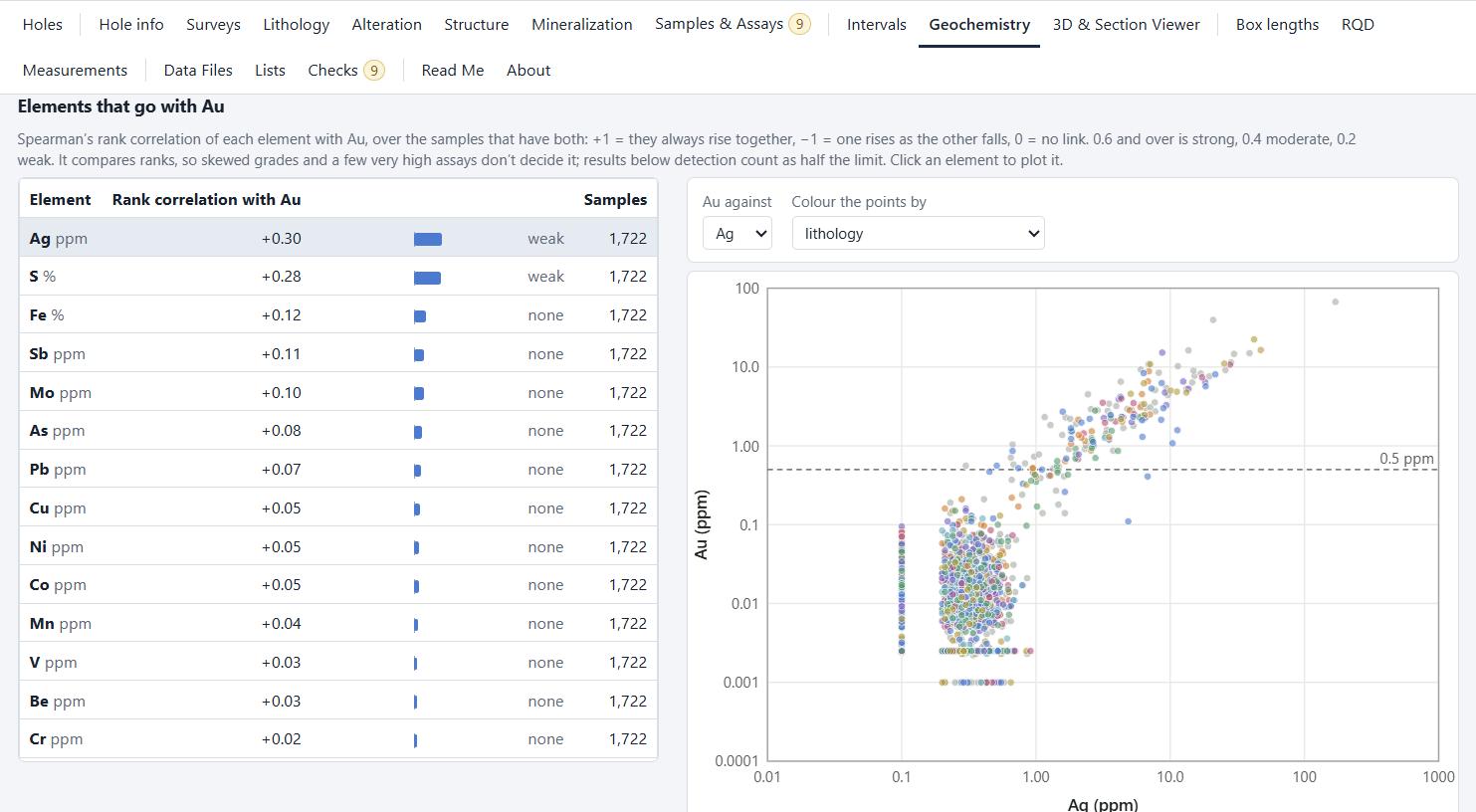
- Pick a target element and see which other elements rise and fall with it, ranked, with a plot of any pair.
- The same for what was logged: which alteration, mineralization and rock types carry higher or lower grades.
- The chemistry of each alteration mineral against the rest of the samples.
- The tables saved to Excel, and the sample table to a CSV file.
A screening tool. It is only useful with a larger set of samples and multi-element lab results, and it says so itself when the data are thin. It shows what occurs together, not why.
Logs and exports
Out of the program in the form you need.
- Finalize a hole into a PDF log and an Excel log, with the strip log to a scale you choose and the core photos.
- Finalize or export every hole of a program in one go.
- Data export: collars, surveys, assays, lithology and the other tables as CSV files laid out for a drillhole database, with the QAQC files if you want them.
- Sections and the 3D view's tables as PDF, PNG, Excel, CSV and DXF.
- Back up program puts every hole and setting of a program into one dated zip file.
The practical side
Simple to put in front of a core logger.
- One file. There is no installer and nothing to set up: copy the program to a computer and run it.
- No internet needed. Everything works offline.
- Plain files. Each hole is one file in a program folder you choose, on your own disk or a shared drive.
- Kept safe as you work. Unsaved work is kept aside automatically and offered back if the computer stops.
- A Read Me inside the program explains every tab and every check.
What it runs on
- Windows 10 or Windows 11, 64-bit.
- Microsoft's WebView2 runtime, which is part of Windows 11 and a free download for Windows 10.